

Why isn’t Cloudflare working?
The first and most important step when troubleshooting is to determine the scope of the problem. Is it just your website, or is the entire Cloudflare network experiencing issues? Due to its massive footprint, a single technical glitch at Cloudflare can simultaneously affect major platforms like X (formerly Twitter), OpenAI, and Spotify.
How to Check for a Cloudflare Outage
Before you touch any settings, use these checks to rule out a system-wide failure:
Official Cloudflare Status Page: Always check the Cloudflare Status page. This is the single most reliable source for real-time updates on network performance, service incidents, and scheduled maintenance.
Outage Tracker Websites: Check independent platforms like Downdetector to see if there is a massive spike in user-reported problems for Cloudflare services.
Social Media: Search social media platforms for the term “Cloudflare down” to see real-time reports from other users and major news outlets.
Pro Tip: If the status page confirms an active incident, the best solution is simply to wait. Cloudflare’s engineering team is typically “all hands on deck” during an outage, and they will deploy a fix as quickly as possible.
Cloudflare Issues for Website Owners (Configuration is Key)
If the Cloudflare status page shows all systems operational, the problem is most likely related to your specific website’s configuration or a problem with your origin server (the server that hosts your website files).
Common Server-Side Errors (5XX Codes)
When Cloudflare can’t connect properly to your origin server, it will display a 5xx error code. These are some of the most frequent reasons why your site appears to be down:
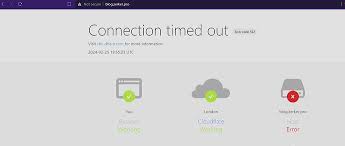
Error 522: Connection Timed Out
The Cause: Cloudflare tried to connect to your server, but the request timed out. This often means your origin server is overloaded, offline, or your firewall is silently dropping Cloudflare’s requests.
The Fix:
Verify Server Health: Ensure your server is online and not overloaded by checking your hosting provider’s dashboard.
Whitelist Cloudflare IPs: This is critical. You must configure your origin server’s firewall to whitelist all Cloudflare IP ranges to prevent your security settings from mistaking Cloudflare’s traffic for an attack.
Check Keepalive Settings: Ensure your server’s HTTP keepalive setting is enabled and configured for a value of at least 60 seconds (or 75 seconds for Nginx).

Error 521: Web Server Is Down
The Cause: Your origin web server explicitly rejected Cloudflare’s connection. This is often an aggressive firewall or a non-running web server.
The Fix: Ensure your web server (Apache, Nginx, etc.) is running and that your server’s firewall is not configured to block all incoming connections from the Cloudflare IP ranges.
Error 525: SSL Handshake Failed
The Cause: The SSL handshake between Cloudflare and your origin server failed. This means your server is likely using a self-signed, expired, or invalid SSL certificate, or the encryption mode is mismatched.
The Fix: Go to the SSL/TLS settings in your Cloudflare dashboard. If you’re using the Full (Strict) mode, you must ensure your origin server has a valid, trusted SSL certificate. If you only have a self-signed certificate, switch your mode to Full (less secure) or switch to Flexible (least secure, but works if you can’t install an origin certificate).
DNS and Configuration Mistakes
Sometimes the issue is not with the server connection but with how the domain is pointing to the server:
Incorrect DNS Records: You must ensure the A and AAAA records in your Cloudflare DNS settings are correctly pointing to the IP address of your origin server. An incorrect IP means Cloudflare is sending traffic to the wrong place.
Nameserver Propagation: When you first set up Cloudflare, you change your domain’s nameservers at your domain registrar. DNS propagation can take up to 48 hours to complete worldwide. If you’re checking your site immediately after setup, it may appear down until this process finishes.
Orange vs. Grey Cloud: If your DNS record has a grey cloud (DNS-only mode), Cloudflare is not actively protecting or accelerating that hostname, and any issues you experience are solely related to your origin server and hosting. If you intend for Cloudflare’s services to be active, ensure the cloud icon is orange (Proxied mode).Newsusas
Cloudflare Blocking You (User-Side and Security Blocks)
If you are a normal user (not the website owner) and you encounter an error, it is almost always a security measure that has been mistakenly triggered.
Why You Might Be Blocked or Challenged
Cloudflare’s primary function is security, and it uses sophisticated rules to protect websites from bots, hackers, and malicious traffic. You might be blocked (Error 1020) or see a repeating CAPTCHA screen (Cloudflare Turnstile) if:
Your IP Address is Flagged: If you are using a shared VPN, public Wi-Fi, or a network where another user recently engaged in suspicious activity, your IP might be temporarily blacklisted by a website’s firewall rules.
Aggressive Security Settings (WAF): The website owner may have configured their Web Application Firewall (WAF) or Bot Fight Mode to be too strict, leading to a “false positive” that blocks legitimate users.
Browser/Extension Conflict: Some browser extensions (especially privacy-focused ones), outdated browsers, or having JavaScript and cookies disabled can interfere with Cloudflare’s necessary integrity checks and challenge pages.
Quick Fixes for Users
If you are a legitimate user being blocked, try these simple steps:
Clear Browser Data: Clear your browser’s cache and cookies. This removes potentially outdated session data that can conflict with Cloudflare’s validation process.
Try a Different Browser or Incognito Mode: Use a different web browser or open an Incognito/Private window. This bypasses any conflicting extensions and ensures a clean start.
Disable Your VPN or Proxy (Temporarily): If you are using a VPN, temporarily disable it to see if your residential IP address is unblocked. If it works, you know the VPN’s IP was the issue.
Update Your Browser: Ensure your web browser (Chrome, Firefox, Safari) is updated to the latest version, as older browsers may not support the security standards required by Cloudflare.
Conclusion: Methodical Steps to Resolve Issues
The key to resolving the question of “Why isn’t Cloudflare working?” is a calm, methodical approach.
Check Global Status First: If it’s a worldwide outage, you can only wait.
Verify Origin Server Health: For site owners, ensure your server is online, not overloaded, and has a valid SSL certificate.
Audit Configuration: Double-check your DNS records, firewall settings (whitelist Cloudflare’s IPs!), and SSL/TLS mode settings within the Cloudflare dashboard.
Simple User Fixes: For general users, clear your cache, update your browser, or try temporarily disabling a VPN.
By systematically working through these checks, you can quickly diagnose the root cause whether it’s a temporary inconvenience or a persistent configuration error and restore the fast, secure functionality that makes Cloudflare an indispensable service.
Cloudflare Frequently Asked Questions (FAQs)
Here are 5 frequently asked questions and their answers related to Cloudflare issues and troubleshooting, complementing the main article.
1. What is the difference between Cloudflare’s Error 521 and Error 522?
These two errors both indicate a problem connecting to your website’s origin server, but the cause is distinct:
| Error Code | Meaning | Root Cause |
| Error 521 | Web Server is Down | The origin server actively refused Cloudflare’s connection request. This often means the server is offline, or its firewall is explicitly blocking Cloudflare’s IP addresses. |
| Error 522 | Connection Timed Out | Cloudflare established a connection, but the origin server took too long to respond before the connection timed out (typically 90 seconds). This is usually due to an overloaded server, or incorrect KeepAlive settings. |
2. I’m seeing “Access Denied” (Error 1020). What can I do as a user?
Error 1020 means the website owner has explicitly blocked your request based on a specific firewall rule within the Cloudflare Web Application Firewall (WAF).
Temporary Fixes:
Clear your browser cache and cookies.
Disable your VPN or proxy and try again (your IP may be flagged).
Try accessing the site using an Incognito/Private Window.
Permanent Fix (Owner): If you are the website owner, you must check your Cloudflare WAF Audit Logs to see which specific rule blocked the request (using the Ray ID provided in the error message) and adjust the rule’s sensitivity or whitelist the user’s IP address.
3. Why is my site slow even though Cloudflare is active?
Cloudflare’s primary function is speed and security, but misconfiguration can negate these benefits. Common causes for slowness include:
“Grey-Clouded” DNS Records: If your domain’s A records are set to “DNS-only” (grey cloud), Cloudflare’s CDN and optimization features are bypassed, slowing down the site.
Low Cache Hit Ratio: If your Cloudflare Caching Level is set too low, or you haven’t configured Page Rules to cache static assets, Cloudflare has to constantly fetch content from your origin server, defeating the purpose of a CDN.
Excessive Security Settings: Aggressive firewall rules, especially those that force a JavaScript Challenge or CAPTCHA on every visit, will significantly increase page load time.
4. How long does it take for my new nameservers to “propagate” after switching to Cloudflare?

When you change your domain’s nameservers at your registrar to point to Cloudflare, the DNS change needs to update across the internet’s network of DNS servers, a process called DNS propagation.
Cloudflare Activation: While Cloudflare usually detects the change quickly (often within minutes), global propagation can take anywhere from a few minutes up to 48 hours.
TTL (Time To Live): The specific time depends on your domain’s previous DNS record TTL settings, which determine how long other DNS resolvers are allowed to cache the old information.
5. Can I use a third-party SSL certificate on my origin server with Cloudflare?
Yes, but you must ensure your Cloudflare SSL/TLS encryption mode is set correctly to maintain end-to-end encryption.
Recommended Mode: Use the Full (Strict) setting. This ensures that Cloudflare uses encryption when connecting to your origin server and that your origin server’s certificate is valid (not expired, self-signed, or issued by an untrusted authority).
Alternative: If you are using a non-standard or self-signed certificate on your origin server, you must use the Full setting, but this is less secure as it doesn’t validate the origin certificate’s authority.
About the Author